
Kenshot | Screenshot Tool | Annotations Makes Windows Screen Captures Easier to Mark Up and Share
Kenshot gives Windows users a focused screenshot workflow with full-screen, window, and area capture plus annotations, fill redaction, and quick save or copy shortcuts.

Kenshot | Screenshot Tool | Annotations is built around a daily computer task that often needs to happen quickly: capture what is on screen, mark it up clearly, and share it without turning the moment into a larger design job. The app is a Windows screenshot tool with a straightforward promise, Your screen capture solution, and the listing backs that up with the pieces most people expect from a practical capture workflow.
At its core, Kenshot lets users capture a full screen, a specific window, or a custom selected area. That range is important because screenshots are rarely one-size-fits-all. Sometimes the whole desktop gives useful context. Sometimes a single window is cleaner. Other times, the right answer is a tight crop around the detail that needs attention. Kenshot covers those basic capture needs directly, which makes the app easy to understand from the first use case.
Capture First, Then Explain
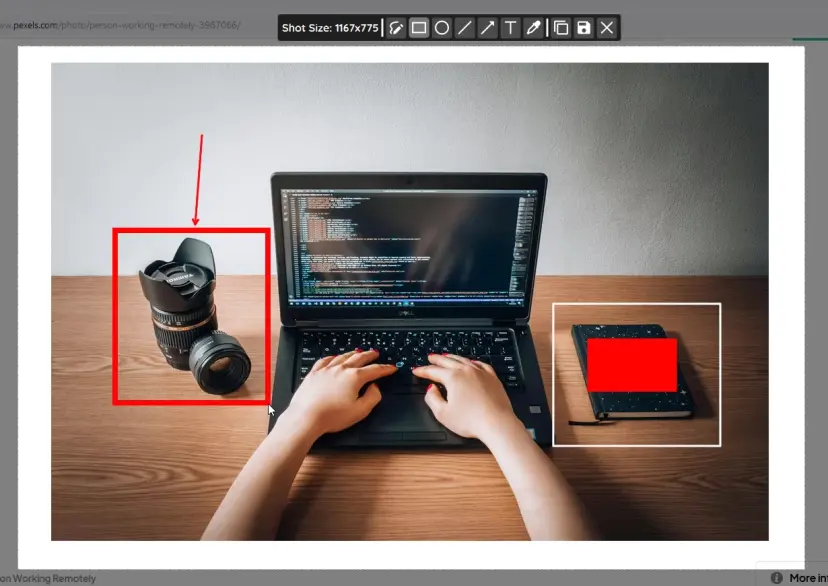
The more useful part of Kenshot is what happens after the screenshot is taken. The app includes built-in annotation tools for text, arrows, shapes, and pen marks. Those tools turn a screenshot from a plain image into something that can explain an idea, point out a problem, or guide someone through a step. For tutorials, presentations, and quick feedback, that difference matters.
A screenshot without annotation can still be useful, but it often asks the viewer to guess where to look. Kenshot gives users the familiar markup pieces that make visual communication faster. An arrow can direct attention. A shape can frame an area. Text can add context. A pen mark can make feedback feel immediate. The listing presents these tools as part of the screenshot workflow itself, which keeps the process focused instead of requiring a separate editor for every small note.
A Practical Way to Hide Sensitive Details
The fill tool is one of the most specific and valuable details in the listing. Kenshot lets users black out sensitive information such as passwords or personal data before sharing a screenshot. That feature gives the app a more careful role than simple capture. Screenshots can easily include things people did not mean to share, especially when they are taken quickly during work, school, support, or troubleshooting.
Having a built-in way to cover sensitive details helps make sharing less risky and less tedious. Instead of exporting an image and opening another tool just to hide one field, the user can handle that cleanup inside the same screenshot flow. For professionals, students, and anyone who regularly sends visual information from a computer, that is a small feature with real practical weight.
Shortcuts That Keep the Workflow Moving
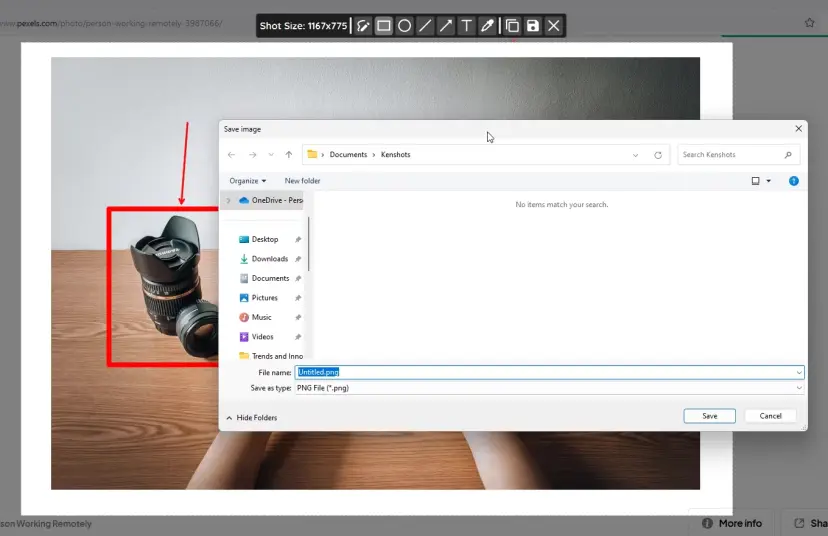
Kenshot also pays attention to the finish of the workflow. Screenshots can be saved or copied instantly with simple keyboard shortcuts, including Ctrl+C, Ctrl+S, and the spacebar. That matters because screenshot tools are often used in the middle of another task. The user may be writing feedback, preparing a slide, documenting a bug, or sending instructions. The tool should not slow that work down.
The shortcut choices make Kenshot feel oriented toward speed. Copying, saving, and moving through capture actions are the kinds of interactions people want to become automatic. When a screenshot tool supports that rhythm, it becomes easier to keep using it as a normal part of work rather than treating it as a separate production step.
Made for Windows Screenshot Work
The listing is clear that Kenshot is currently compatible with Windows only. That focus is useful to state plainly because it helps set expectations. The app is listed across web and desktop platforms, with productivity, utility, desktop, screenshot, and Windows tags, but the actual compatibility note points Windows users toward the current functional target.
Kenshot is also listed as freemium, and the description says the application is 100 percent functional while development is temporarily on pause. It notes that both the website and desktop app are due for an overhaul, and that when the overhaul resumes, existing data will be wiped out. That is an unusually direct note, and it gives the listing a candid quality. Users can see both the current usefulness of the app and the state of the product roadmap before deciding how to approach it.
A Focused Tool for Clearer Sharing
Kenshot leaves a positive impression because it keeps its purpose tight. It is not trying to become a broad creative suite. It is focused on capturing the screen, adding useful marks, hiding sensitive information, and getting the result saved or copied quickly. That focus is exactly what a screenshot utility needs.
The app should make sense to students preparing visual notes, professionals giving feedback, people building tutorials, and anyone who has to explain something on a screen. Its strongest quality is the way the features line up around a common workflow: capture the right area, add just enough context, protect private details, then share the result. For Windows users who regularly communicate through screenshots, Kenshot | Screenshot Tool | Annotations offers a clear and practical capture companion.
View Kenshot | Screenshot Tool | Annotations on App Builders PH
Kenshot | Screenshot Tool | Annotations · image 1
Kenshot | Screenshot Tool | Annotations · image 2

Kenshot | Screenshot Tool | Annotations · image 3
Kenshot | Screenshot Tool | Annotations · image 4
View Kenshot | Screenshot Tool | Annotations on App Builders PH